Payment Maintenance
Use check maintenance to complete the following activities:
- Void a check
- Enter a manual check
- Create an automated or manual prepayment
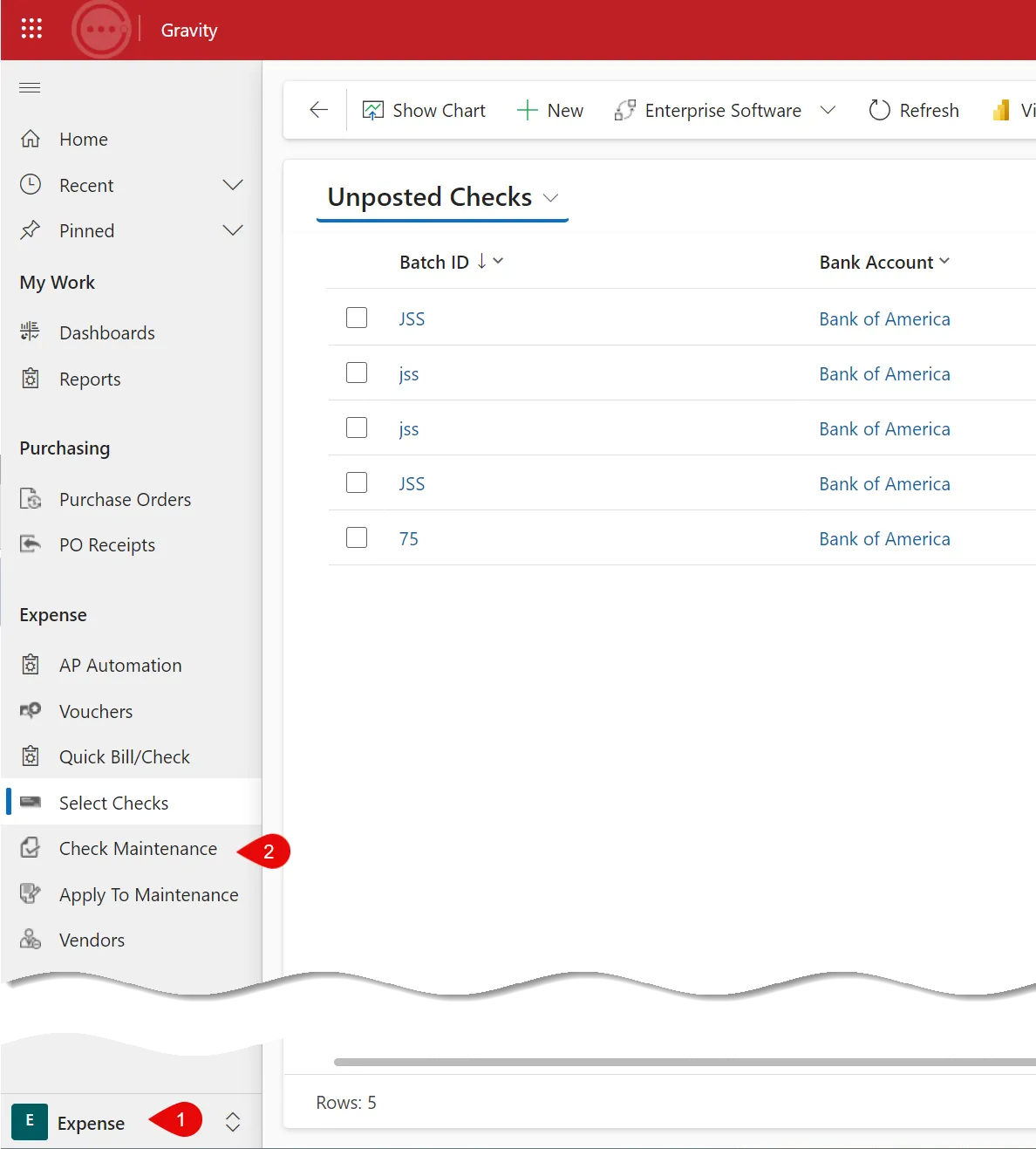
Access the check maintenance function from the Expense options.
Process Steps
Void a Check
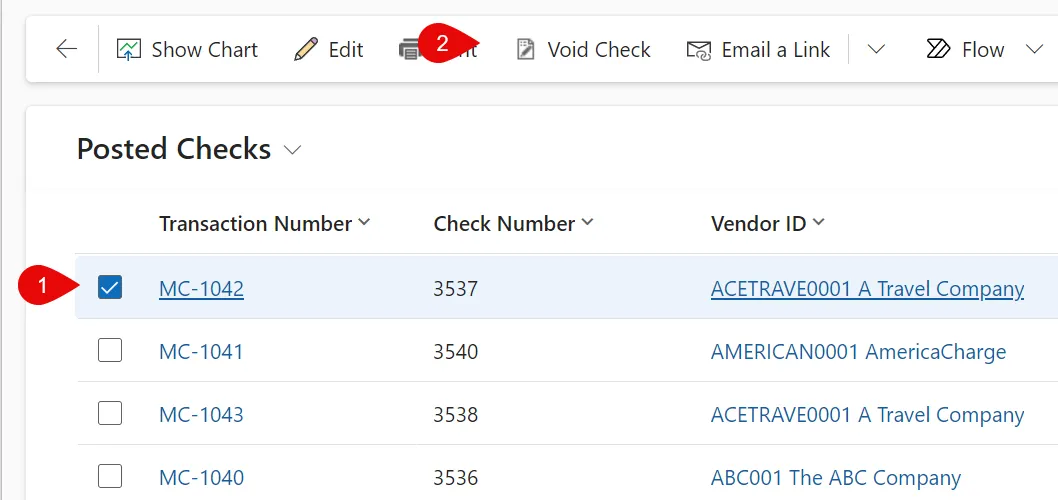
Select a posted check from the posted automated or manual checks grid display.
Select void check from the action menu.
You can also Void the check if you open the form.
Enter a Manual Check
Select new from the action menu.
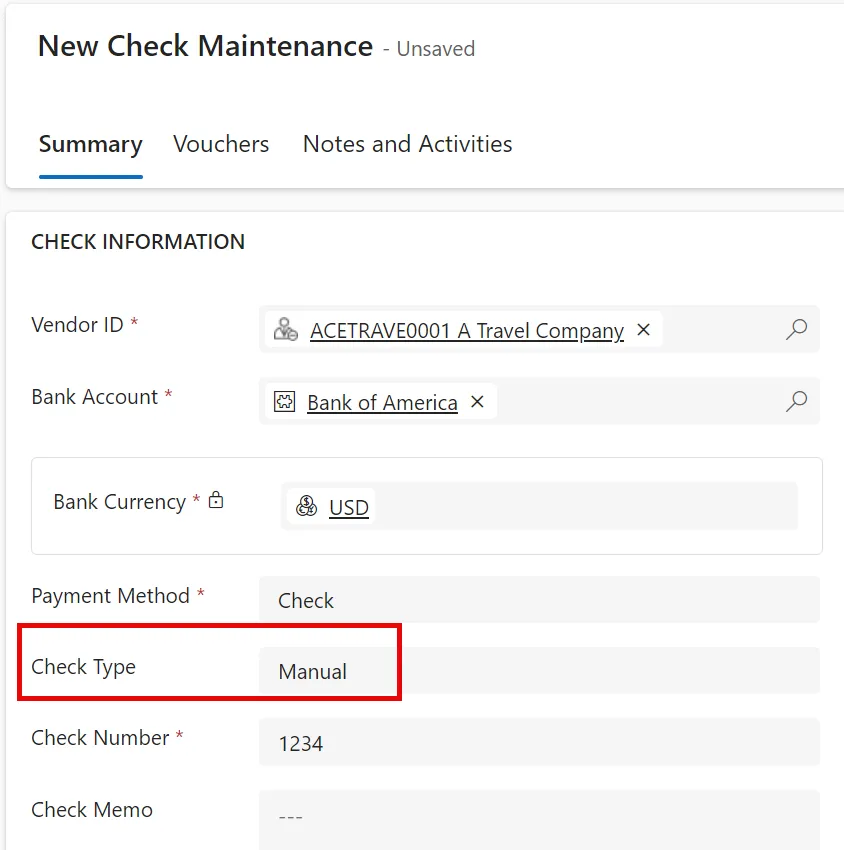
- Complete the check header information selecting manual as the check type.
- Enter the manual check number.
- Select the vouchers paid.
- Select save on the action menu.
- Select post on the action menu.
- System displays a dialog confirming the check was posted.
Enter a Prepayment
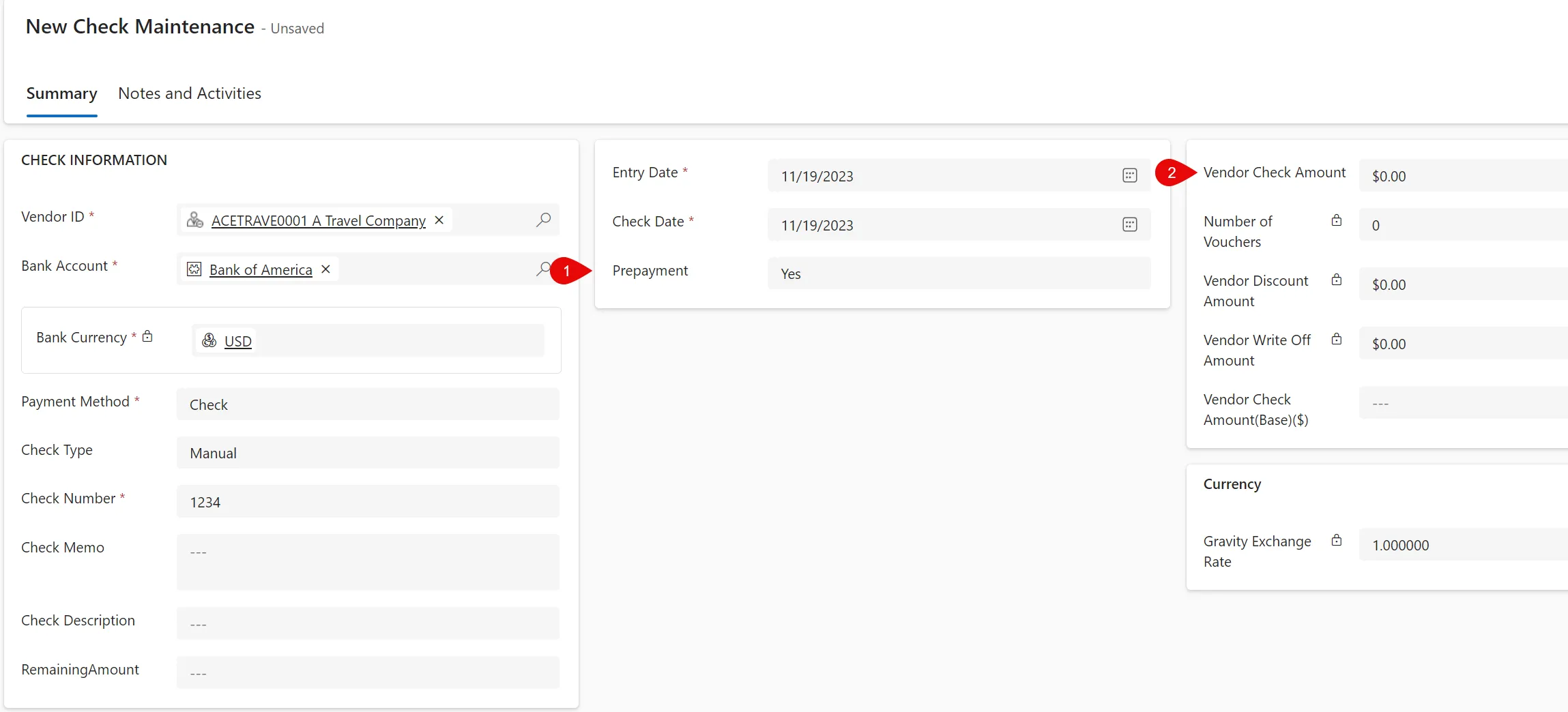
- Select new from the action menu.
- Complete the check header information.
- Select manual or automated as the check type.
- Enter the check number if manual check is selected.
- Select yes under the pre-payment option and enter the vendor check amount.
- Select save on the action menu.
- Select post on the action menu.
- System displays a dialog confirming the check was posted.
Header Fields
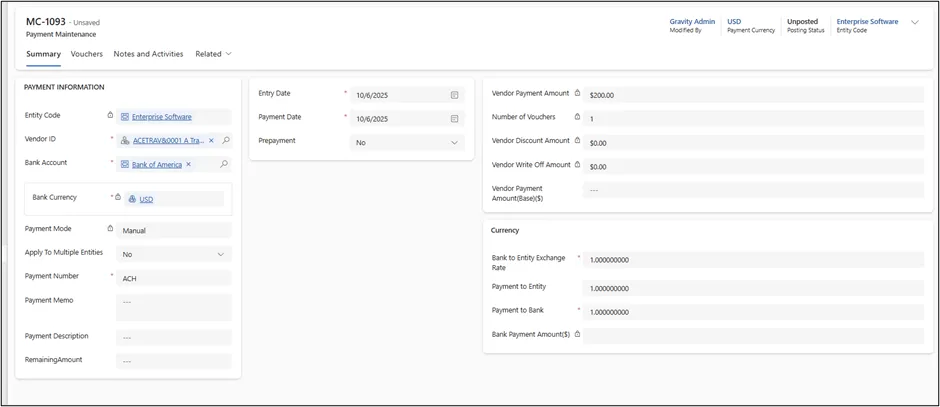
Entity Code
With Advanced Multi-Entity turned on, the entity can be selected for each transaction without having to close the form. See Advanced Multi-Entity
Vendor ID
Select a Vendor. Use the in-line search capability or the field's drop-down search box.
Selecting a vendor retrieves the vendor’s defaults.
Bank Account
Select the bank account from which the checks will be drawn. Use the in-line search capability or the field's drop-down search box.
Payment Mode
Select whether the payment will be processed by Gravity (Automatic) or just recorded as a payment made in another system (Manual)
Payment Type
Payment Types are defined separately and assigned to Bank Accounts. The Payment Type will default from the chosen bank account. See Payment Types . Payment Type is only available with Automatic Payment Modes.
Apply to Multiple Entities
When selected the batch will include Vouchers from all the entities that the user has accress to. If a payment is made on bealf of another Entity, there will be Due To/Due From accounts used to account for the Entity making the payment on behalf of the other Entity.
Payment Number
Enter the number of the manual check created. This option is not available for an automated check.
Payment Meno
Enter payment comments in this field. This will print on the lower left corner of the check.
Entry Date
This is the date the journal entry is created. It defaults to the current date. Change the date if required.
Payment Date
Use the check date to determine the accounting period the transaction applies to based on the fiscal periods set up for the company.
For example, an apply date of 4/19/2019 applies the transaction to the calendar period of April if calendar periods are selected in system setup.
With the applicable user permissions assigned, the user can apply transactions to past and future periods. Use the calendar function to navigate and select the correct period and date.
Prepayment
Set to “yes” if you wish to create a check before you receive a vendor invoice.
A prepayment can be applied to a voucher in apply to maintenance.
See Apply To Maintainence
Vendor Check Amount
If prepayment is selected, enter the prepayment amount. If not a prepayment, this is a system maintained field and calculated when the batch is saved.
Number of Vouchers
This is a system maintained field and calculated when the batch is saved.
Vendor Discount Amount
This is a system maintained field and calculated when the batch is saved.
Vendor Write Off Amount
This is a system maintained field and calculated when the batch is saved.
Currency
See Currencies in Payment Processing for more details
Grid Fields
Expansion Box
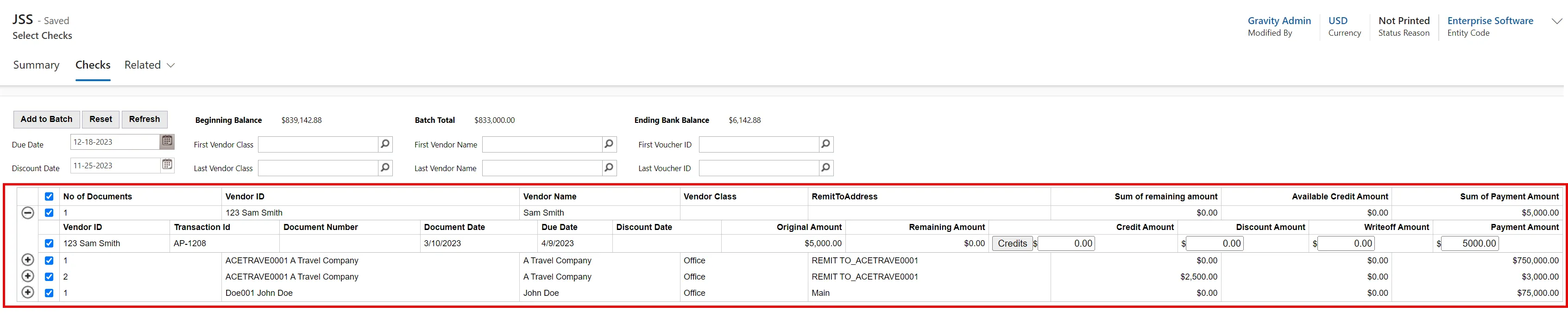
Use the + and - to expand and contract the Vouchers listed in the grid.
Selection Check box
Select either a group or individual vouchers to be paid. Selecting the vouchers displays the total vouchers amount to be paid.
Discount Amount
Selecting a voucher will default a discount to be taken (based on the terms code and pay date). Manually enter or edit the discount.

Write Off Amount
Manually enter or edit a write off amount.
Payment Amount
The payment amount is the check amount. Manually enter or edit the payment amount to pay less than the total voucher balance. The total discount amount + write off amount + payment amount cannot exceed the total voucher amount.
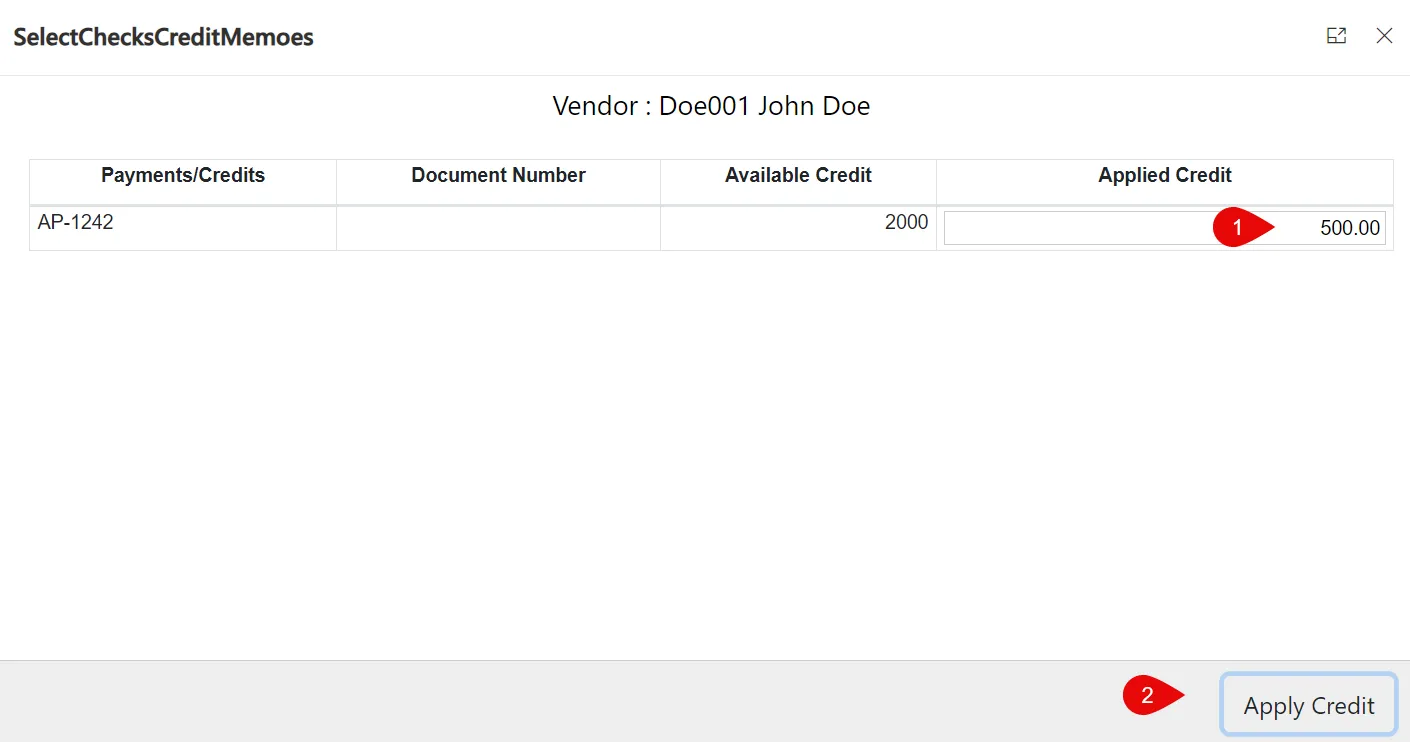
Applying Credits
If a Vendor has unapplied credits they will show up in the Voucher grid and can be applied to one or more Vouchers
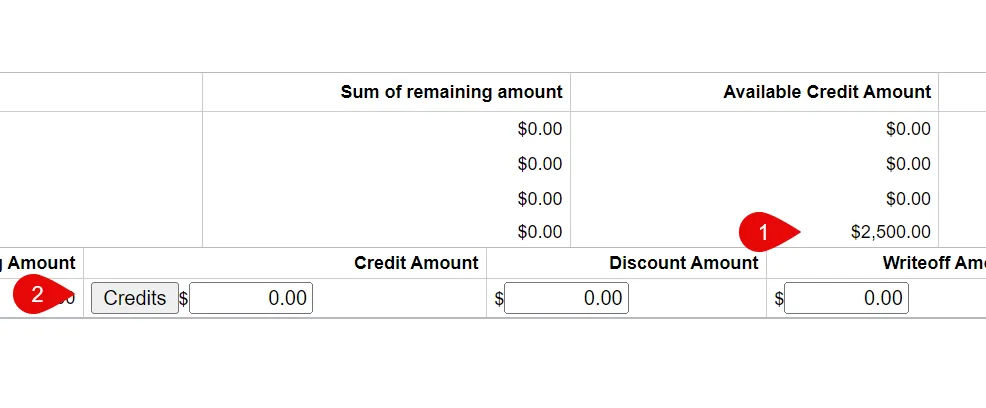
Once you select the Credit button you can apply one or more credit to the select Voucher line.