Purchase Order
Purchase orders (PO) are used to initiate and confirm the purchase of goods or services from a vendor. Use the PO screen to enter, edit or release PO's. After a PO is released it can be changed or canceled.
Use purchase orders for both inventory and non-inventory items. The user can flag non-inventory items to require a receiving transaction.
Gravity supports both a 2-way and a 3-way match.
- Use 2-way match for goods and services not requiring a receiving transaction. A PO is matched directly to the vendor invoice.
- Use 3-way match for inventory items and non-inventory items flagged for receiving. A PO is matched to a PO receipt. The PO receipt is matched to a vendor invoice.
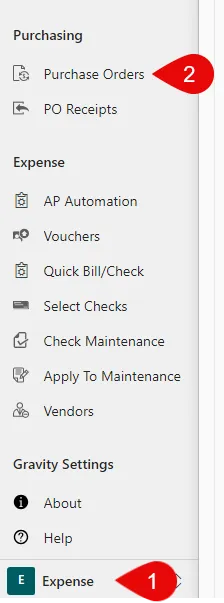
Access the PO function from expense, purchasing options.
Process Steps
Preparing Purchases Orders

Changing Purchase Orders

Canceling Purchase Orders
A released PO can be canceled. Canceling a PO inactivates it and removes any PO quantities with the related inventory items.
Summary
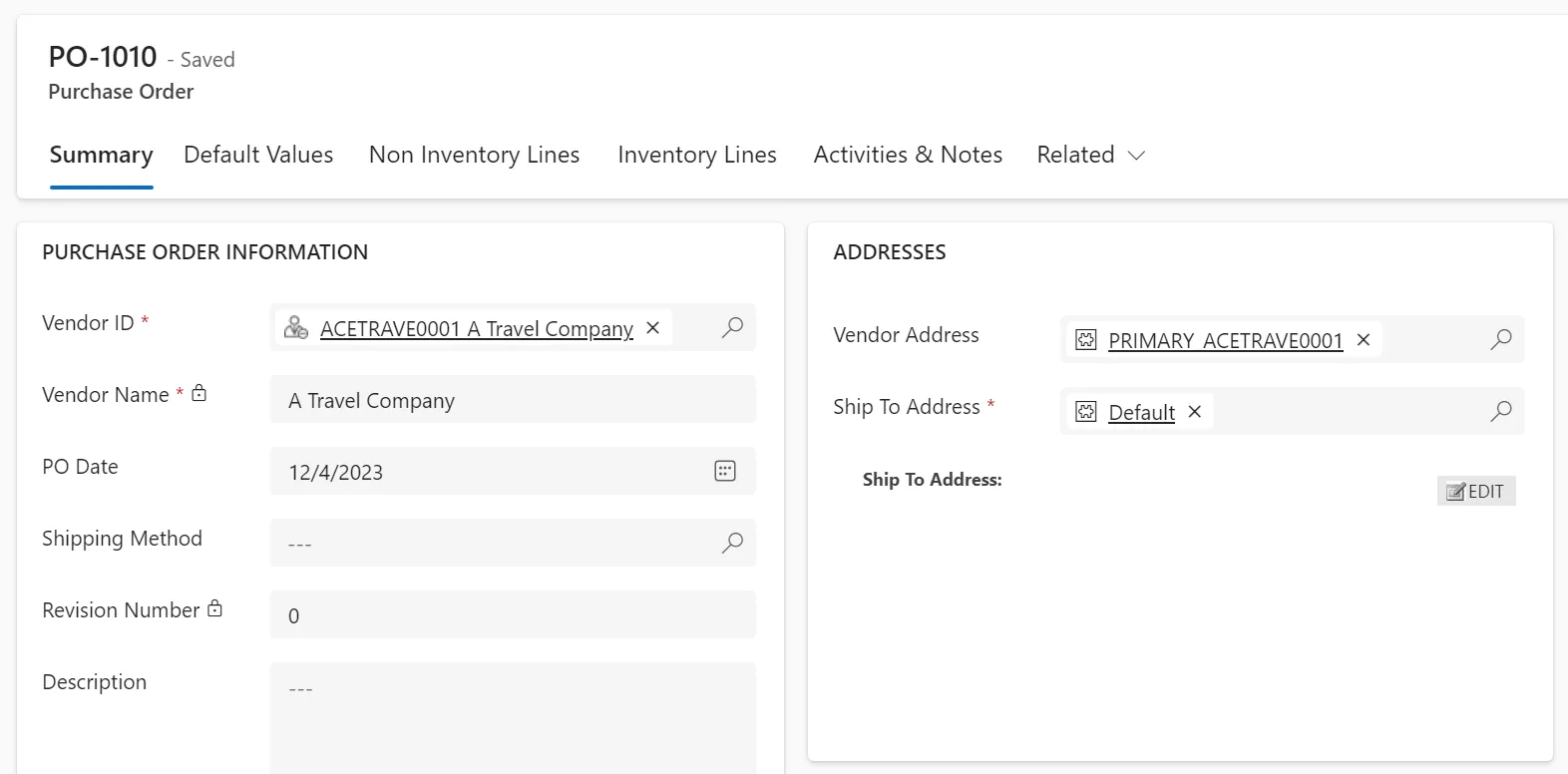
Vendor ID
Select a vendor. Use the in-line search capability or the drop-down search box. Selecting a vendor retrieves the vendor’s defaults.
Vendor Name
The vendor name displays confirming the vendor selection.
Purchase Order Date
Enter the PO date.
Shipping Method
Select the PO shipping method. Use the in-line search capability or the drop-down search box to select a shipping method. Add new shipping methods from the selection window or in system setup.
Revision Number
The revision number tracks PO changes to the original PO. When a PO is initially created it has revision number "0". After it is released, a PO change creates an editable PO and increments the release number.
Description
Use the text field for documenting instructions or information that can be optionally printed on a PO.
Vendor Address
The vendor address defaults the vendor purchase from address. It can be changed for each PO.
Ship To Address
The ship to address displays the default inventory site address. Selecting EDIT allows the address to be changed allowing shipment to alternative locations.
Dimensions
Use dimensions to define how transactions are categorized for unique reporting requirements. Dimensions defined on the header are automatically copied to line items. Use header dimensions if most or all of the line items will have the same dimension codes.
See Using Dimensions
Totals
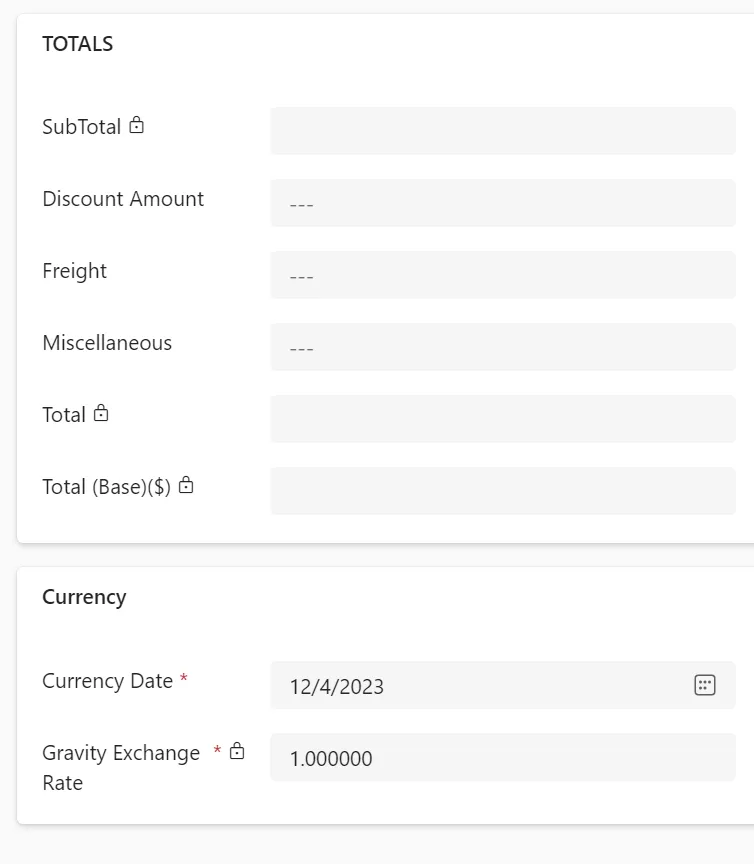
Discount, freight and miscellaneous charges can be added to the PO. An amount entered in the discount field is subtracted from the subtotal.
Default Fields
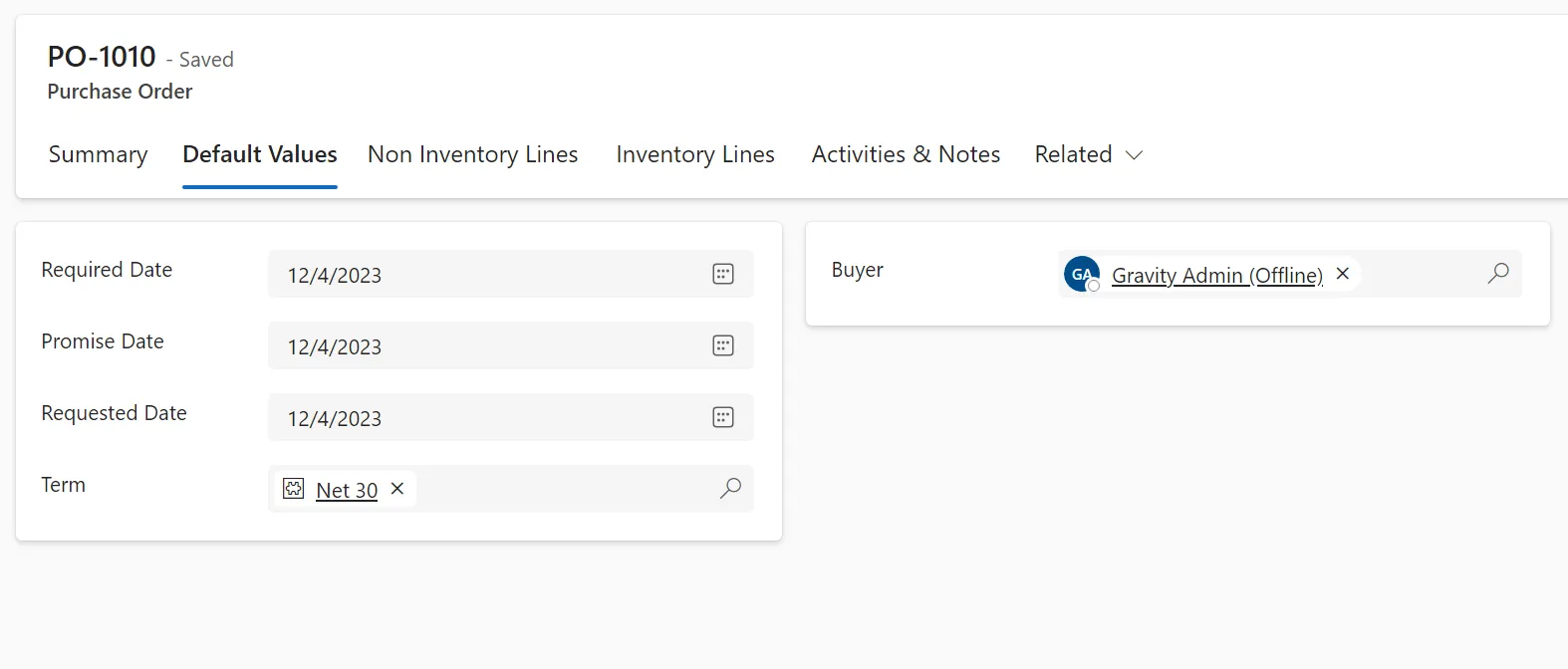
Required Date
Use the required date to define the PO required by date. Assign a required date uniquely to each line item.
Promise Date
Use the promise date to define the delivery date promised by the vendor. Assign a promise date to each line item.
Requested Date
Use the requested date to define the date the items on the PO are requested to be delivered. Assign a requested date to each line item.
Terms
Vendor terms default from the vendor record. Terms can be changed on each PO. Term codes drive the calculation of the voucher due date, discount date and discount amount.
Buyer
Use the field's drop down list to select the buyer responsible for the PO. Buyer information can be optionally printed on the PO. The buyer name defaults to the current user.
Non-Inventory Lines
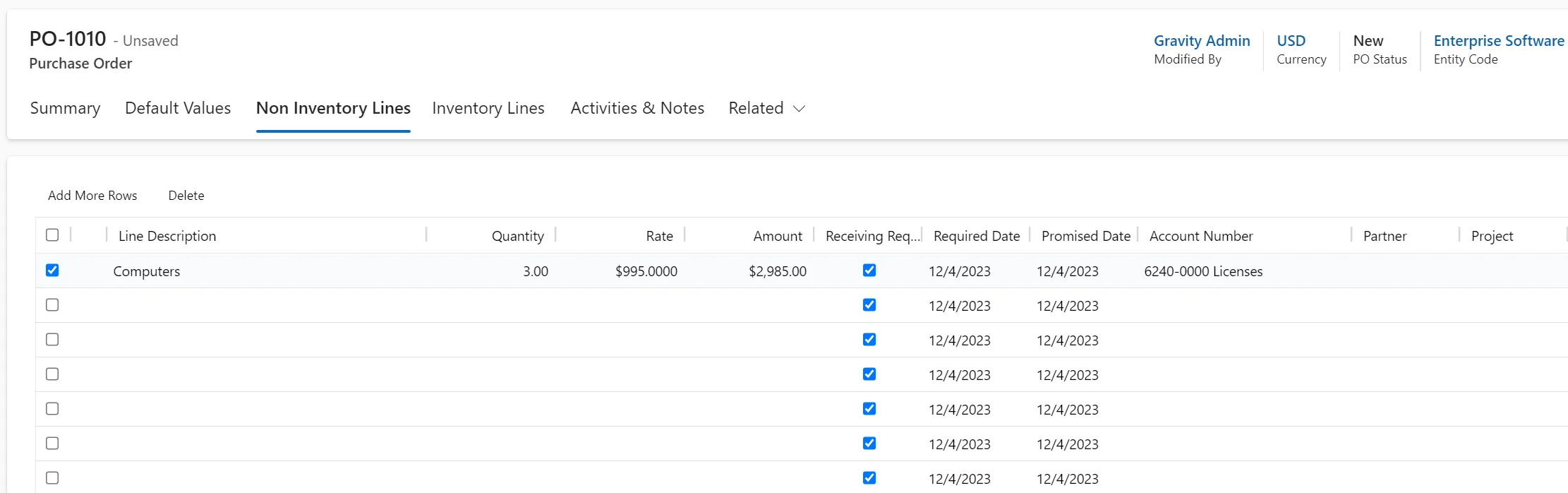
Line Description
Enter a description to identify the printed PO line item. Enter up to 2000 characters in the description.
Quantity
Enter the quantity purchased.
Rate
Enter the rate per item for the purchase.
Amount
The amount automatically calculates (quantity x rate). Enter an amount for the line item without a quantity and rate when needed.
Receiving Required
By default, non-Inventory line items do not require receiving. This is useful for services when no physical product is delivered. Receiving can be required by checking the receiving required box. When used, the selected lines cannot be matched to vouchers until they have been received.
Required Date
Use the required date to define the date the line items required to be delivered.
Promise Date
Use the promise date to define the date the line items are promised by the vendor to be delivered.
Account Number
An account number is required if the item is selected for receiving. This account is debited when the items are received or the voucher is matched and posted.
Dimensions
Use dimensions to define how transactions are categorized for unique reporting requirements. Dimensions defined on the header are automatically copied to line items.
Dimension rules determine if dimensions are required or optional on each line item.
See Using Dimensions
Inventory Lines
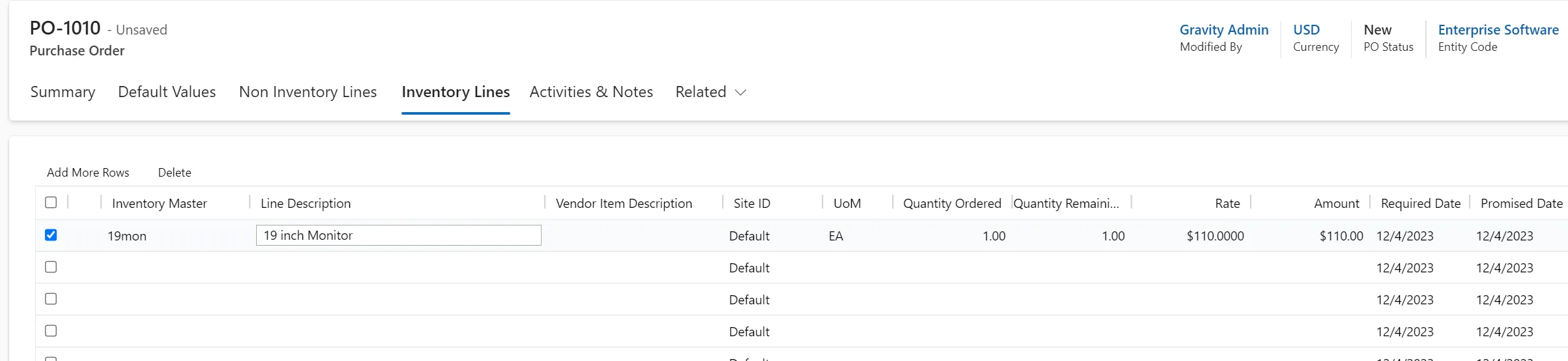
Item Master
Enter the inventory item number or name to select the item to be purchased. Use the in-line search capability or the drop-down search box as required.
Line Description
The item description for the selected item defaults into the line description field. The Item description can be changed specifically for a PO when required. Enter up to 2000 characters in the description.
Vendor Item Description
Optionally enter a vendor description that uniquely identifies the item to the Vendor. Gravity stores the vendor item description for future purchases. Enter up to 2000 characters in the description.
Site ID
Enter the site ID for which you are purchasing the items. This field defaults to the default site in the entity configuration.
UOM
Enter the UOM for the item. Note that you can only enter UOM assigned to the specific item or where conversions have been set. Use the in-line search capability or the drop-down search box as required.
Quantity Order
Enter the quantity purchased.
Quantity Remaining
This defaults to the quantity ordered on a new line item. This field is system maintained and cannot be edited. It represents the quantity remaining to be received on a PO.
Rate
Enter the rate per item. The rate can default from the last rate used for purchasing the item or from a vendor specific rate based on a flag set in entity configuration. Gravity stores the last rate used for the item and vendor combination.
Amount
The amount automatically calculates (quantity x rate). Enter an amount for the line item without a quantity and rate if required.
Required Date
Use the required date to define the items delivery date.
Promise Date
Use the promise date to define when the items are promised to be delivered by the vendor.
Dimensions
Use dimensions to define how transactions are categorized for unique reporting requirements. Dimensions defined on the header are automatically copied to line items. Change line item dimensions as required.
Dimension rules will determine if dimensions are required or optional on each line item.
See Using Dimensions