Sales Kit
Process Steps
- Create an Inventory Item with a Type = Kit
- Assign pricing and defaults to the new item.
- Create a new Kit record in Bill of Materials/Kits of Type = Kit with the parent item set as the item defined above
- Add Items to the Kit
- Publish the Kit
Note
- A Sales Kit is a phantom Item that represents the bundle of products established as part of the kit structure.
- Sales Kit's do not track Item Quantities or Item Costing.
- Sales Kits cannot be purchased.
The Price of a Sales Kit is Allocated to the items that make up the bundle on a prorated basis of individual prices for gross margin analysis.
Example :
Stereo Kit (Receiver & 2 Speakers) has Price of $1000
Item | Original Price | Allocated Price |
|---|---|---|
Receiver | $300 | $260.87 |
Speakers | $850 | $739.13 |
| | |
Fields -Header
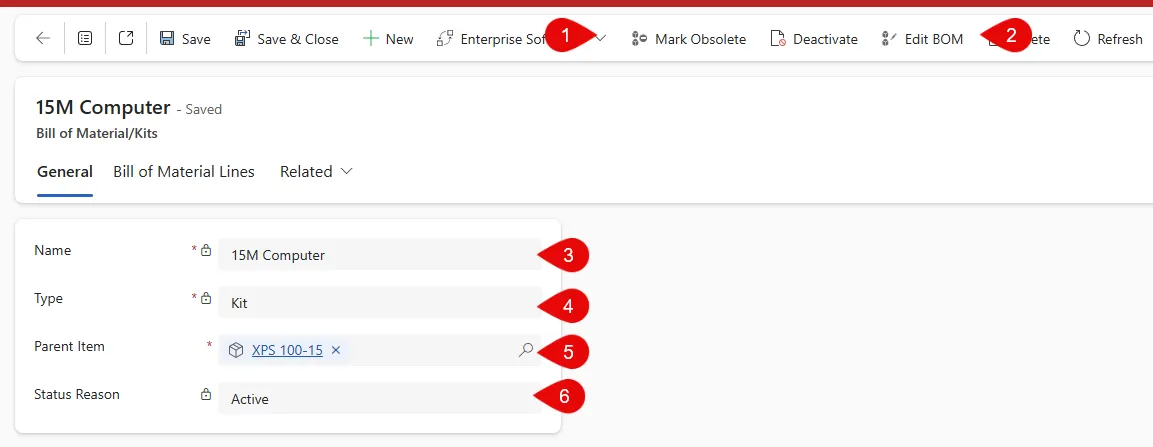
Publish (not shown)
This Action will change the Status to Active and allow the Kit to be used in Invoices.
(1) Mark Obsolete
This Action will change the Status to Obsolete and not allow the Kit to be used again it is re-published.
An Obsolete status allows the kit to remain for historical purposes but it cannot be used in an Invoice
(2) Edit
This Action will change the Status to Pending and not allow the Kit to be used again it is re-published.
A Pending Status is used to create or edit a kit.
(3) Name
Enter an alphanumeric name to represent the Kit.
(4) Type
Allows the user to select between Kit or Bill of Materials.
(5) Parent Item
The Inventory Item that has been created as Item Type = Kit.
The Parent Item is what will be referenced on an Invoice.
(6) Status
The current status of the Kit.
Fields -Grid
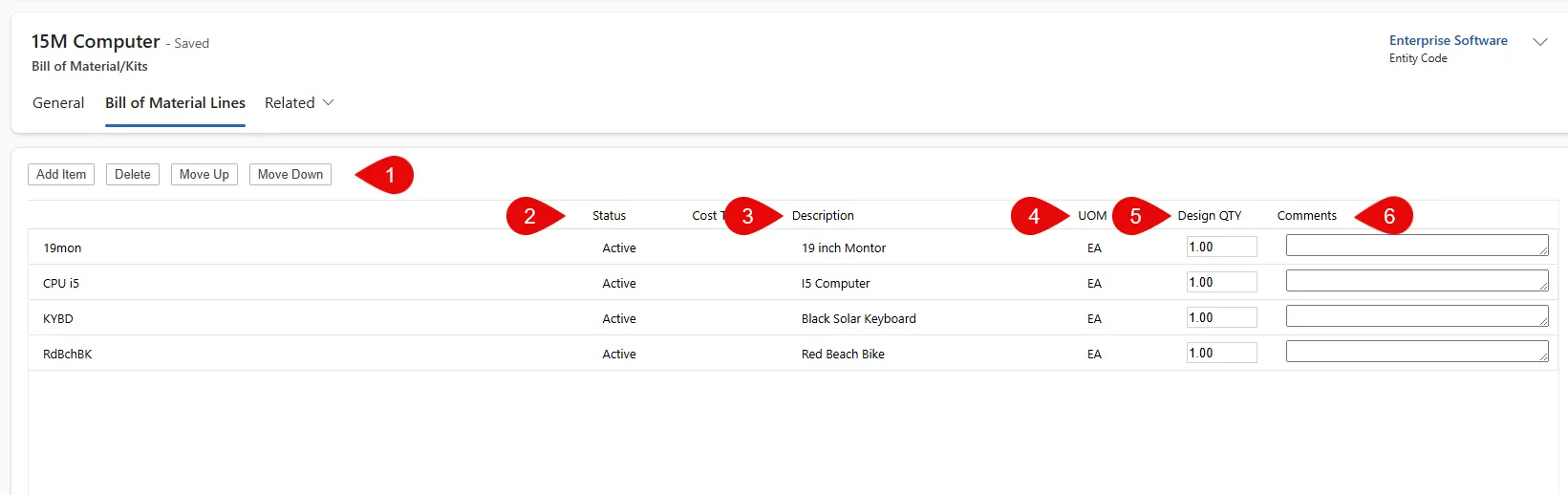
(1) Grid Actions
Select Action to Add, Delete or move an Inventory Item on the grid.
(2) Status
Shows the status of the Inventory Item added to the grid.
(3) Description
Displays the description of the Inventory Item added to the grid.
(4) UOM
Displays the Unit of Measure for the Inventory Item added to the grid.
(5) Design Quantity
Enter the Quantity of the selected item in the kit.
(6) Comments
Optional - Enter additional comments relating the Inventory Item added to the grid.