AP Automation
AP Automation Overview
The purpose of Gravity’s AP Automation to more efficiently and accurately convert invoices from supplies in the PDF format to Vouchers in Gravity. Gravity is using an AI engine developed by Microsoft to interpret the PDF invoices. Invoices can be manually imported or sent to a user specific email address.
Microsoft AI Engine
Gravity leverages a Microsoft AI engine to transform PDFs provided by vendors into Vouchers without the need for manual data entry. This streamlined process saves time and ensures the accuracy of the data.
Note: This feature must be enabled for each organization and is added cost that will be monthly based on usage. Please contact Gravity Sales for more information.
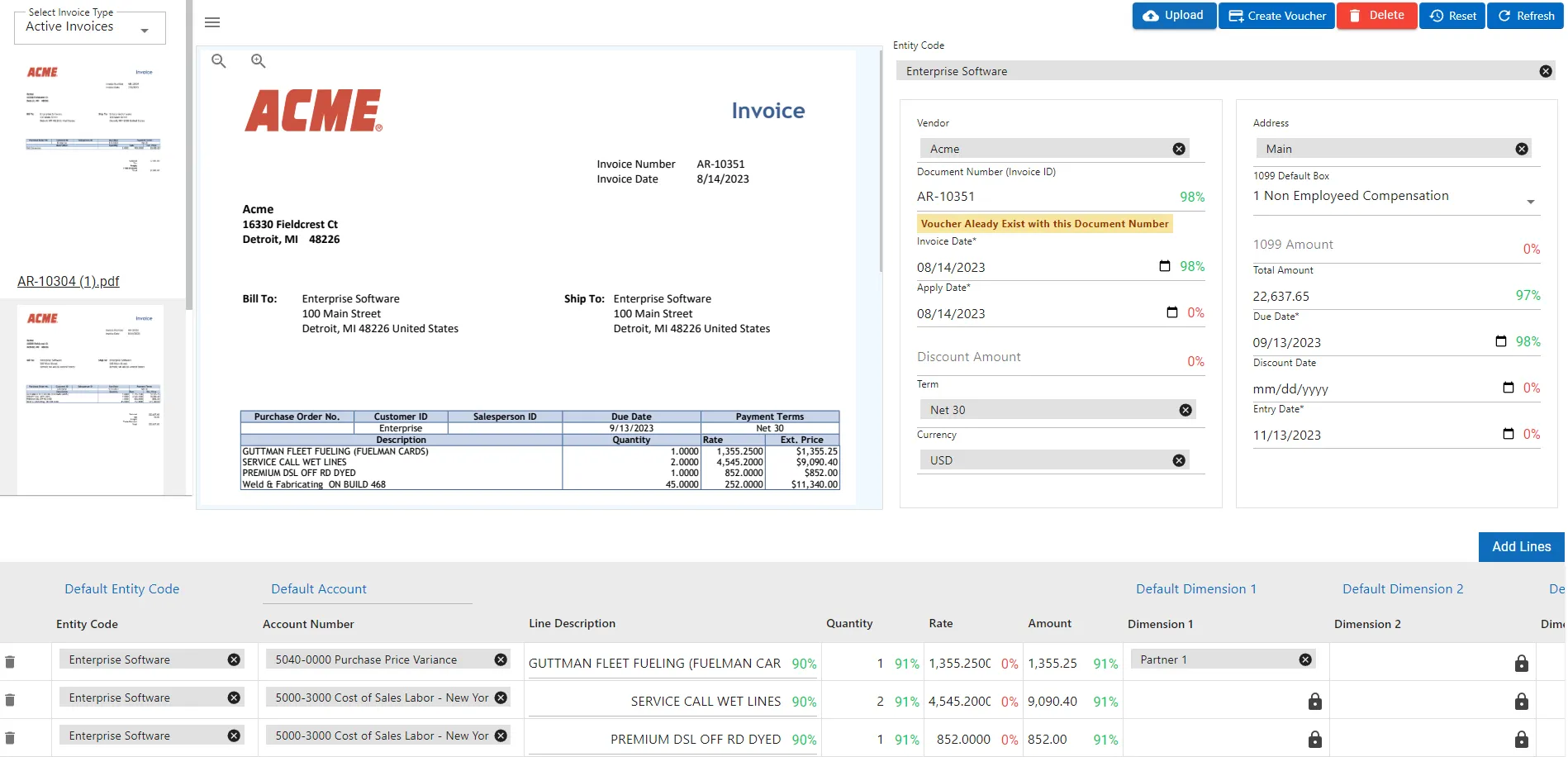
PDF documents can either be uploaded from the users desktop or emailed to a specific predefined email address. The PDFs will show up in the upper left corner.
Selecting a PDF will expand it and show how the data was interpreted.
Note: The document cannot be parsed until an Entity has been found or selected.
Process
- Upload or Email a PDF
- Select the PDF to be reviewed.
- Confirm the Entity found or enter an Entity
- Review and correct the data elements
- Select the Create Voucher action. When selected Gravity will create the Voucher and attach the PDF.
Actions
Upload
Choose to manually upload one or more documents
Create Voucher
The action will create a Voucher in Gravity, attach the PDF to the Voucher and mark the PDF as completed
Delete
This will mark the PDF as deleted.
Reset
This will reset any changes made on the document to the original interpretation.
Refresh
This will refresh the browser
Notable Items
Probability Percentages
Next to interpreted fields Gravity will display the probability that the field was correctly interpreted. Items in red should be reviewed.
Duplicate Vouchers
Gravity will display next to the Document Number an indication if the document number has already been entered for the selected Vendor.
Entity Code, Account Numbers and Dimensions
Gravity remembers how line items have been coded in the past and will default these fields from past history for this vendor. Above each column you can select a value to fill all the line items with.